How to Identify Unnecessary Programs on PC

WINDOWS PERFORMANCE GUIDE

PC me Unnecessary Software Kaise Identify Karein?

Safe Tarike Se Uninstall Karne Ka Complete Guide. Learn how to pinpoint resource-hogging bloatware and safely remove background processes without risking system stability.
QUICK ASSESSMENT GUIDE

Quick Answer: How Do You Know If a Program Is Unnecessary?

Before removing any software, evaluate it against these 8 critical metrics to prevent system instability or loss of vital functionality. If a program fails to satisfy these criteria, it is safe to uninstall.

8 KEY EVALUATION CRITERIA

What Is Unnecessary Software?

Not all programs on your system deserve to be there. Understanding the distinct categories of digital clutter is key to unlocking peak hardware efficiency.

1. Unused Applications (Bloatware & Forgotten Apps)

These are fully functional programs sitting completely idle on your storage drive. They are either pre-installed by the manufacturer (OEM bloatware) or downloaded by you for a single-use task years ago and forgotten.

2. Redundant Background Processes

These services run silently behind the scenes without an active user interface. While some are essential to keep your OS secure, others are unnecessary background threads spawned by closed applications that continuously consume RAM and CPU cycles.

3. High-Impact Startup Programs

These apps are configured to launch automatically the exact millisecond your operating system boots up. A high volume of startup programs severely bottlenecks your system’s startup speed and fragments your memory before you even open a browser.

4. Malware & Potentially Unwanted Programs (PUPs)

Intrusive software that sneaks onto your machine bundled with free software or downloads. Unlike simple inactive programs, malware and PUPs actively consume immense processing power, track browser history, and display unwanted advertisements.
A step-by-step navigation guide to viewing, analyzing, and auditing your system’s software library.

1. Quick Navigation Steps

2. Understanding App Details

Name (The App Title)
The official identifier of the application. You can use the built-in search bar at the top of the Windows list to look for programs using matching keywords.
Specifies the software developer (e.g., Microsoft Corporation, Adobe, or Epic Games). This details the origin of the software, helping you verify trusted installations.
The timestamp showing exactly when the app was initially installed or last updated on your hardware. Sorting by date lets you easily track down recently added apps.
Indicates the storage capacity (usually listed in megabytes or gigabytes) that the app occupies on your primary drive. Ideal for auditing space-heavy software.
Windows Settings Preview
LIVE INTERFACE
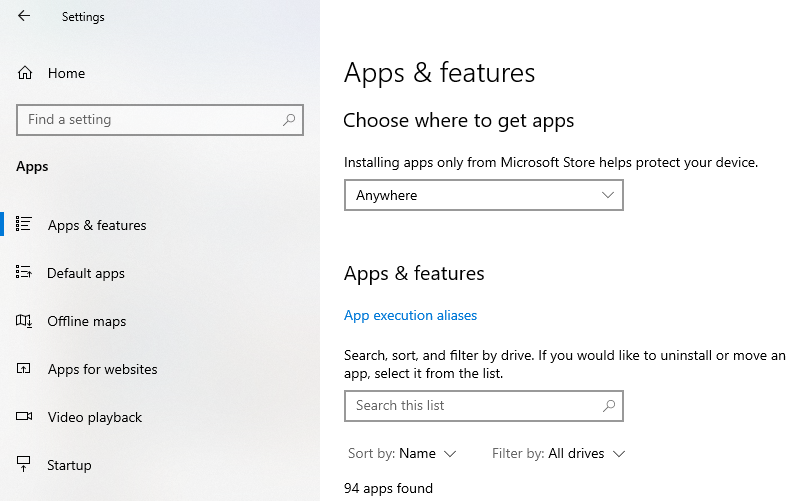
Settings -> Apps -> Installed apps. In this window, you can view the Name, Publisher, Size, and Date Installed for each application on your computer.

Programs You Should Be Careful About Removing

Uninstalling core hardware managers or essential system runtimes can lead to severe hardware malfunctions, broken connectivity, or a complete failure of the Windows OS to boot. Keep these critical components intact unless you are performing an advanced driver reinstall.

Chipset Drivers

Manages communication between the CPU, motherboard, and USB controllers.

Graphics Software

NVIDIA, AMD, or Intel control panels. Removal resets your display to basic resolution.

Audio Controllers

Realtek / MaxxAudio. Disabling can kill speaker outputs and jack sensing.

Wi-Fi Drivers

Intel / Killer Wireless drivers. Removing instantly severs your internet access.

Bluetooth Stack

Powers wireless peripherals, audio headsets, and game controllers.

Touchpad Utility

Synaptics / ELAN software. Disables multitouch gestures and trackpad precision.

Security Suites

TPM utilities and biometric login systems that secure credentials and keys.

OS Components

Microsoft Visual C++ runtimes and .NET Framework packages required by games and apps.

Safe Uninstallation Process

Follow our rigorous 9-step automated routine to guarantee zero residual registry clutter, total disk space recovery, and secure startup processes.

01

Close Active Processes

Shut down the target application fully and terminate any running task instances or background helper agents.

02

Initialize Secure Uninstaller

Launch our specialized removal module with local administrator rights for administrative structural privileges.

03

Run Registry & File Database Scan

Analyze core system logs, user app folders, and virtual mounts to map all trace directory pathways.

04

Wipe Executable Binaries

Safely delete all principal executable files, software kernels, dynamic libraries, and system drivers.
05

Purge Registry Keys

Deep-clean registry entries, invalid shortcuts, configuration files, and software interface registrations.
06

Clear Temporary Caches

Erase application directories nested in ProgramData, AppData/Local, and AppData/Roaming system pathways.
07

Erase Leftover Shortcuts

Remove obsolete icons, broken symlinks, shortcuts, start-menu entries, and desktop associations.

08

Check Startup Entries

Verify background startup actions to block automated boot files from restarting with Windows.
09

Verify Integrity & Reboot

Conduct a dynamic final audit process to secure database clean-state status, then restart the operating system.

SYSTEM PREPARATION GUIDE

Before You Uninstall Any Program

Prevent system instability, accidental data loss, and broken dependencies. Audit your system against this 8-point checklist before running any setup file or uninstaller.

1. Publisher Knowledge Verification

Verify developer signing details. Ensure the software isn’t an essential framework signed by Microsoft, Intel, or your hardware OEM.

2. Map Active Shared Dependencies

Check if other utilities depend on its core framework, libraries, runtime environments, or system drivers to function.

3. Backup Crucial User Data

Export critical configuration settings, local document directories, custom user profiles, and active databases safely.

4. Terminate Background Services

Ensure no automated background services, tasks, scheduled backups, or cloud synchronizers are running the program.

5. Identify Peripheral Drivers

Verify the tool is not running driver-level optimizations, peripheral controls, RGB integrations, or active cooling configs.

6. Secure Product & Activation Keys

Retrieve and backup critical serial keys, activation licenses, config tokens, or user credentials before wiping files.

7. Install Alternative Software First

Pre-configure alternative replacement software first, avoiding workflow interruption when the source tool is wiped.

8. Prepare Rollback & Original Media

Keep the installer’s original executable file or dynamic download path handy in case you need to urgently roll back.
FAQ & TROUBLESHOOTING

Frequently Asked Questions

Have questions about system cleanup? Read our expert answers on how to scan, identify, and cleanly remove stubborn background processes and residual file clutter.

How do I identify hidden or unwanted software running on my system?

You can detect background applications using system utilities like Windows Task Manager (Ctrl + Shift + Esc) or macOS Activity Monitor. Look for unfamiliar processes that consume high CPU or memory. For a deeper, certified scan, use advanced administrative tools like Microsoft Sysinternals Process Explorer, which highlights verified publishers and checks running files directly against virus databases.
The safest method is always utilizing your system’s native panel (Apps & Features in Windows Settings or dragging files to Trash on macOS). For advanced cleanups, dedicated third-party uninstallers like Revo Uninstaller or AppCleaner scan your storage drive and Windows Registry immediately after the main uninstall to target and securely purge orphan temporary files, user logs, and cached libraries.
No, you should never manually delete installation folders directly from Program Files or Application folders. Deleting files manually leaves deep registry pathways, background auto-start scripts, system services, and dynamic link library (DLL) configurations fully active. This creates broken pointers, system slows down, and potential software installation blockages in the future.
When programs refuse standard uninstallation, boot your device into Safe Mode. This disables non-essential background processes and stops the software from actively blocking its own removal. You can then run the official uninstaller safely, or leverage Microsoft’s free Program Install and Uninstall Troubleshooter utility to force remove corrupted setup nodes.
Bloatware and trialware are pre-installed items shipped by your system’s hardware manufacturer. In 95% of cases, it is completely safe to uninstall them, and doing so dramatically improves startup times and disk space. Ensure you do not remove essential brand utilities responsible for your laptop’s cooling control, trackpad gestures, or audio processors.
On Windows, open Task Manager (Ctrl+Shift+Esc) and click the ‘Startup Apps’ tab to disable apps from loading. On macOS, access System Settings > General > Login Items and remove any unnecessary apps listed under ‘Open at Login’. Disabling secondary programs prevents hardware strain upon bootup without affecting their manual functionality.
Check the software executable properties to see if it contains a verified Digital Signature from a trusted manufacturer. Additionally, utilize a public scanning engine like VirusTotal to analyze the file hash across 70+ antivirus databases. If the signature is missing or flagged by multiple security products, quarantine and delete the file immediately.
Registry leftovers are remnants of software settings kept in the OS system configuration. While small fragments rarely slow down modern SSD-based setups, an accumulation of thousands of broken paths over years can cause incorrect file associations, software collision, and system index errors. A careful registry cleaning can resolve these specific issues safely.

Add a Comment

Your email address will not be published. Required fields are marked *