WINDOWS TROUBLESHOOTING

Laptop Slow Ho Gaya Hai? Windows Laptop Ko Fast Karne Ke Practical Ways

Agar aapka laptop hang ho raha hai ya slow chal raha hai, toh ye practical troubleshooting guide aapke liye hai. Bina kisi fake claims ke, jaaniye real hardware aur software fixes.

Quick Answer Summary

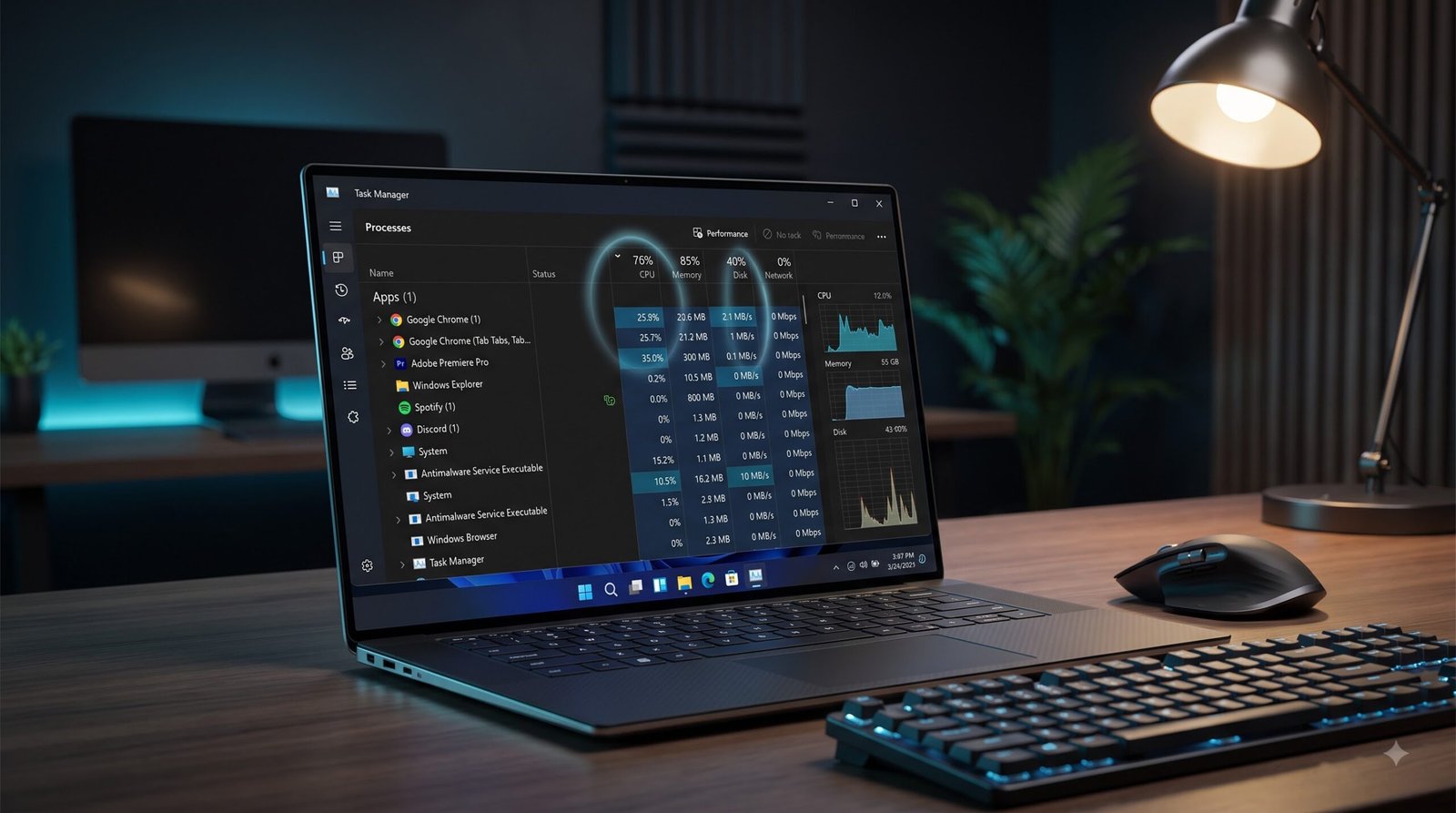
1. Task Manager: Pata Karein Laptop Slow Kyun Hai

Agar aapka laptop achanak slow ho gaya hai, to sabse pehle Ctrl + Shift + Esc daba kar Task Manager open karein. Yahan aap real-time dekh sakte hain kaunsa program aapke CPU, Memory (RAM), aur Disk ko sabse zyada use kar raha hai. Aksar background apps chupke se resources consume karte hain jinhe band karna zaroori hota hai.
⚠️ Warning: Kisi bhi unknown ya system process (jaise ‘System’ ya ‘Explorer.exe’) ko ‘End Task’ na karein, isse aapka Windows crash ho sakta hai.

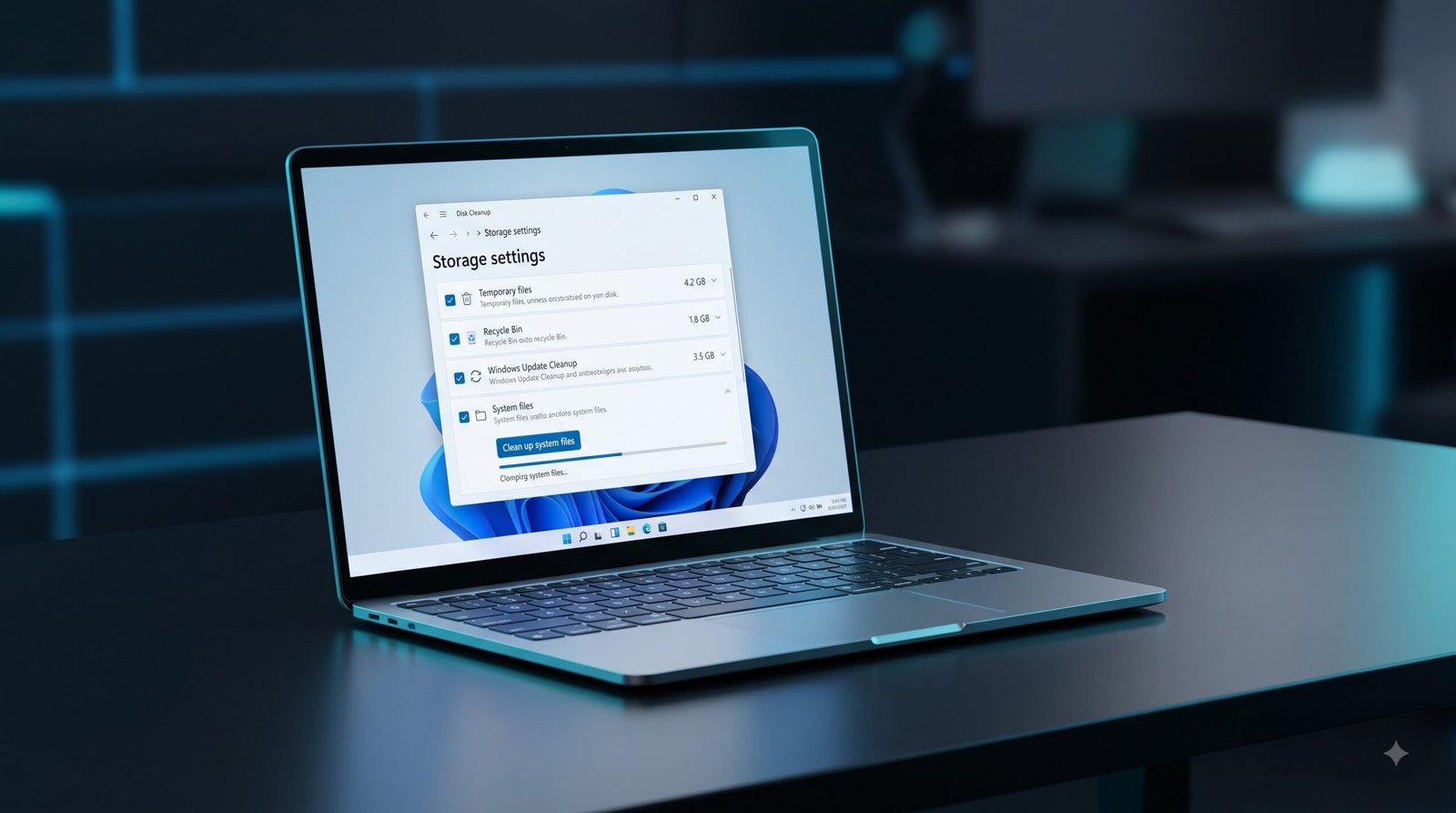
2. Disk Cleanup aur Temporary Files

Aapke system me temporary files aur cache jama hone se drive full ho jati hai, jisse OS overall slow perform karne lagta hai. Windows ke built-in clean up tools ka use karke is garbage file dump ko aasani se clean kiya ja sakta hai.

⚠️ It's Maintenance, Not a Magic Boost

Dhyan rakhein, disk cleanup karne se storage space recover hogi aur drive bottlenecks dur honge, lekin isse gaming me koi magical FPS boost nahi milega. Ye aapke storage hardware ki health aur normal speed ko maintain rakhne ka tarika hai.

3. Startup Apps, MSCONFIG aur Windows Update

Windows boot times aur system performance ko streamline karne ke liye teen zaroori kadam aur myths se bachne ka tarika.

Task Manager Startup Apps

Windows boot hote hi bohot saare apps background me auto-start ho jaate hain. Yeh apps bina wajah RAM aur CPU resources waste karte hain.

MSCONFIG Processors Myth

MSCONFIG me ‘Number of Processors’ setting active karne se speed nahi badhti. Yeh developer debugging ke liye hai taaki cores ko limit kiya ja sake.

Updates & Official Drivers

Third-party driver utility apps ke fasaad se door rahein. Yeh system files corrupt karte hain aur adware/spyware install kar sakte hain.

4. System File Check (SFC) aur DISM

Agar aapke Windows PC me unexplained crashes, slow dynamic performance, ya system system startup errors aa rahe hain, toh system files corrupt ho sakti hain. Windows ke paas inko automatic scan aur repair karne ke liye do zبردست internal utilities hain: SFC aur DISM.

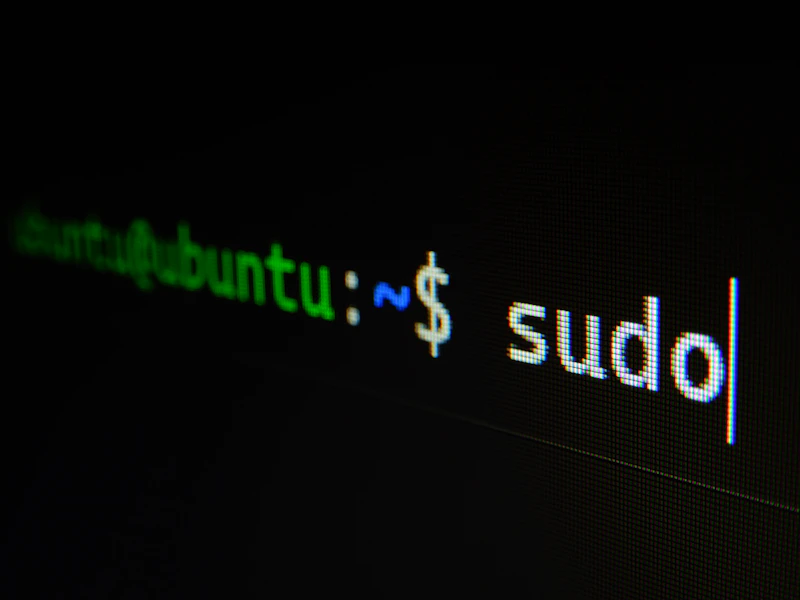
SFC (System File Check): Ye local cache directory se corrupted system files ko scan karke direct replace kar deta hai. Command Prompt ko Administrator permissions ke sath open karein aur ye run karein:

sfc /scannow

DISM (Deployment Image Servicing): Agar local sfc cache hi corrupt ho chuki ho, toh DISM background me safe Windows Cloud Servers se healthy copies stream karke system files clean up karta hai:
DISM /Online /Cleanup-Image /RestoreHealth
💡 Expert Trick: Best results ke liye hamesha pehle DISM command chalayein, aur uske turant baad SFC scan karein takki offline image source aur live core files dono standard check pass kar sakein.
Run terminal scripts only as system administrator (Elevated CMD)

5. HDD vs SSD: Sabse Bada Performance Factor

Windows OS performance upgrade ke liye storage architecture ko samajhna zaroori hai. HDD aur SSD ke mechanics mein zameen-aasman ka farq hai.

Mechanical HDD

Purani technology jo spinning physical magnetic platters aur dynamic mechanical heads par depend karti hai.

Solid State Drive (SSD)

No moving parts. Direct, instant electrical pathway through high-speed flash chips.

⚠️ Critical Maintenance Rule: Do Not Treat SSDs Like HDDs!

SSDs ko kabhi bhi Defrag (Defragment) mat karein. SSD chips par limited write cycles hote hain, aur defragmentation bina kisi fayde ke thousands of extra writes create karke aapki drive ki life short kar deti hai. Windows built-in ‘Optimize’ tool automatically TRIM signal bhejta hai jo SSD ke liye completely safe aur standard process hai.

6. Storage Health aur CHKDSK

Hard Disk Sentinel portable utility ke jariye storage health regularly verify karein. Agar drive click-of-death, repetitive freezing, ya extreme slowdown show karti hai, toh system critical hardware crash stage par ho sakta hai.

Advanced CHKDSK Command Switches

⚠️ CRITICAL WARNING: BACKUP DATA FIRST!

Heavy scan commands runs multiple intense read operations. Agar drive hard hardware damage state par hai, toh CHKDSK run karne se drive complete failure mein switch ho sakti hai. Hamesha data backup priority rakhein.

7. RAM, Overheating aur Browser Optimization

Apne computer ya laptop ki processing speed ko boost karne aur lag/heat khatam karne ke teen sabse asardaar tareeqe.

RAM Usage Check

Task Manager (Ctrl + Shift + Esc) khol kar dekhein kaunse apps background me zyada memory consume kar rahe hain. Unused apps ko select karein aur ‘End Task’ par click karke RAM free karein.

Overheating & Dust

Tez fan ki awaaz aur heavy lagging overheating ki nishani hain. Laptop vents ko soft brush ya compressed air se clean karein. Bed ya soft surface ki jagah hamesha flat desk ya laptop stand ka use karein.

Browser Optimization

Zyada tabs open rakhne se browser heavy ho jata hai. Unused extensions ko turant remove karein, regularly cache data clean karein, aur speed badhane ke liye Hardware Acceleration feature ko active rakhein.
SYSTEM RESTORATION FRAMEWORK

Troubleshooting Checklist: Step-by-Step Order

Follow this logical sequence to systematically isolate physical failures, software conflicts, and deep OS corruption without skipping critical diagnostics.

01

Isolate the Symptom

Verify if the issue is strictly isolated to hardware, software, user account, or peripheral components.
02

Check Physical Connections

Verify raw power cables, re-seat memory modules (RAM), GPU cards, and storage cables securely.
03

Boot into Safe Mode

Verify if the OS successfully loads minimal native drivers to rule out third-party application conflicts.
04

Analyze BSOD Minidumps

Use tools like WinDbg or BlueScreenView to parse dump files and identify the exact driver causing memory crashes.

05

Inspect Event Viewer

Search Windows Logs > System / Application for critical errors or warnings occurred during system failure.
06

Verify Storage Integrity

Check SSD SMART values with CrystalDiskInfo, then execute ‘chkdsk /f /r’ to repair structural volume errors.
07

Test RAM with MemTest86

Run a bootable memory diagnostic test overnight to isolate silent, intermittent hardware RAM corruption.
08

Run SFC & DISM Commands

Reconstruct system files by executing ‘DISM.exe /Online /Cleanup-image /Restorehealth’ and ‘sfc /scannow’ in admin cmd.
09

Roll Back Recent Updates

Uninstall newly deployed cumulative updates or OEM hardware drivers that may have broken system compatibility.
10

Monitor Thermal Performance

Verify that critical CPU and GPU temperatures remain safe under heavy stress test loads using HWMonitor.
11

Update BIOS/Firmware

Flash stable motherboard UEFI/BIOS revisions and SSD controller firmware to resolve underlying board anomalies.
12

Perform a Clean Boot

Isolate persistent runtime errors by temporarily stripping unnecessary non-Microsoft services and startup apps.
13

Restore System State

Revert the OS to an automated configuration checkpoint using System Restore or clean disk image back-ups.
14

Clean OS Reinstallation

Perform a fresh installation of the OS using dedicated bootable media to eliminate persistent file-structure corruption.

Common Mistakes to Avoid

Frequently Asked Questions

Aapke saare tech aur hardware related doubts ka clear-cut Hinglish solution.
1. Kya SSD lagane se mera purana laptop sach mein fast ho jayega?
Ji haan! Ek purani HDD ke muqable SATA ya NVMe SSD aapke system boot-up time, file transfer aur multitasking speed ko 5x se 10x tak fast kar deti hai. Ye aapke purane laptop ko naya jaisa bana degi.
Windows update ke baad system background mein indexing aur optimization run karta hai jo temporary lag create karta hai. Iska best solution hai temporary junk files clear karna, startup programs disable karna aur disk cleanup tool run karna.
Laptop fans ko har 6-12 mahine mein dry-blow karke saaf karein. Thermal paste dry hone par processor heat transfers nahi kar pata, isliye har 1.5 se 2 saal mein high-quality thermal paste lagwana behad zaroori hai.
Normal routine, office work aur casual gaming ke liye standard SATA SSD kaafi hai. Lekin agar aap heavy tasking, 4K video editing ya large development software use karte hain, toh NVMe M.2 SSD bilkul sahi choice hai kyunki iski read/write speed amazing hoti hai.
Haan, aap kisi bhi purane laptop ya desktop ki internal 2.5-inch HDD ko ek saste ‘SATA External Casing’ (Enclosure) mein dalkar portable backup drive ki tarah aasani se use kar sakte hain.
Windows Reset ke waqt aapko do option milte hain: ‘Keep my files’ (jismein files save rehti hain bas programs delete hote hain) aur ‘Remove everything’ (jismein sab kuch saaf ho jata hai). Koi bhi reset karne se pehle apna backup zaroor bana lein.

Join Tech Dhamaka Hub!

Rozana technical video tutorials, hardware installation guides aur emergency quick fixes pane ke liye humein follow karein.

Quick Tech Recap

Is complete hardware guide ka quick summary yaad rakhein:

Was this guide helpful?

© 2026 Tech Dhamaka. All Rights Reserved.
Privacy Policy | Terms & Conditions | Contact Us
Shopping Basket